Sentence Bookmarks: Save the Lines That Stay With You
Why Bookmark Sentences?
Individual words carry meaning, but sentences carry use. Bookmarking a sentence preserves the exact context in which a word appeared — which research suggests is the most memorable and transferable form of vocabulary learning.
How to Bookmark a Sentence
- Open any text in the Reader.
- Tap a sentence to activate it — a bookmark icon appears at its left edge.
- Tap that icon and the sentence is saved to your Vocabulary Vault under the Bookmarks section.
- A small marker stays on the sentence while you read, so you can see at a glance what you have already saved.
Because bookmarking is tap-driven rather than hover-driven, it works the same way on a phone as it does on a laptop — handy if you read on the move.
What Gets Saved
Each bookmark stores:
- The full sentence text.
- The book or article source and chapter title.
- A timestamp.
- Any words in the sentence that you have separately saved to word lists.
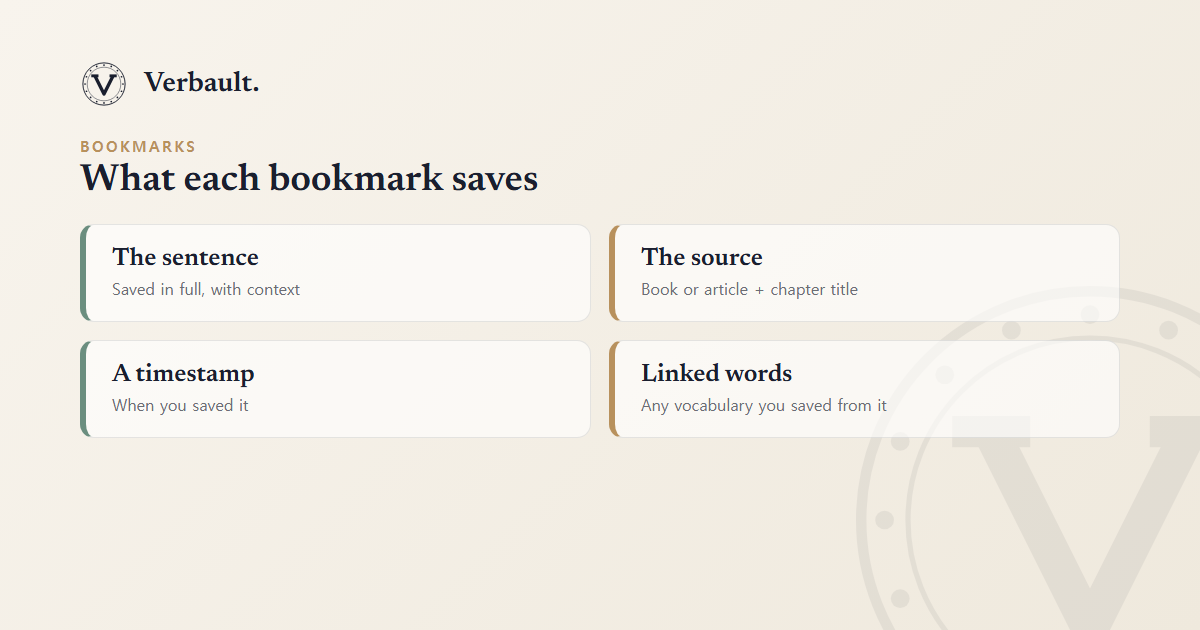
Together these turn a bookmark into a complete little study card: you keep not just the line but where it came from and which of its words you were studying.
Using Bookmarks in Worksheets
Bookmarked sentences can be used as example sentences in the fill-in-the-blank and definitions-plus worksheet types. Select From your vault when configuring a worksheet to draw examples from your own bookmarks rather than from the default corpus.
Example — A Memorable Line
Try opening Frankenstein and bookmarking the sentence that begins "Nothing is so painful to the human mind as a great and sudden change." Then look up /word/sublime to see how Shelley uses register to shift between registers in the same chapter.
For everything you can do once words and sentences are saved, see the Vocabulary Vault guide.
Comments (0)
Log in to comment.