How to Use the Verbault Reader
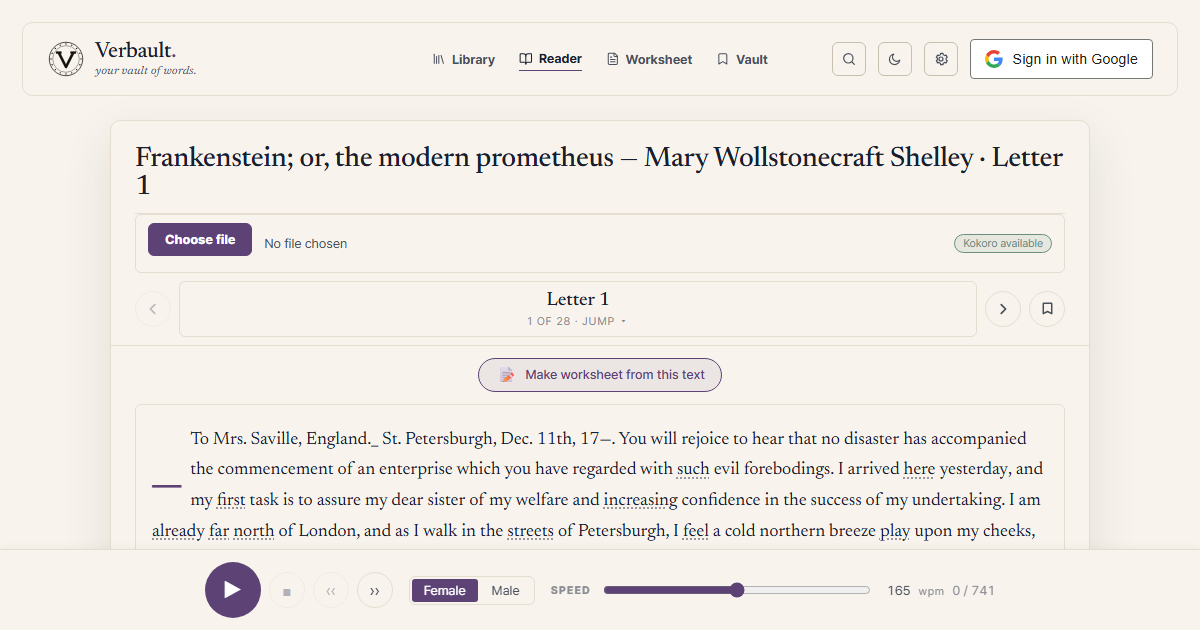
The Reader is the heart of Verbault. Drop in a text and every word becomes tappable, levelled, and ready to study — with definitions, translation, and read-aloud all one tap away. This guide walks through it from a blank page to a finished worksheet.
Opening a Text
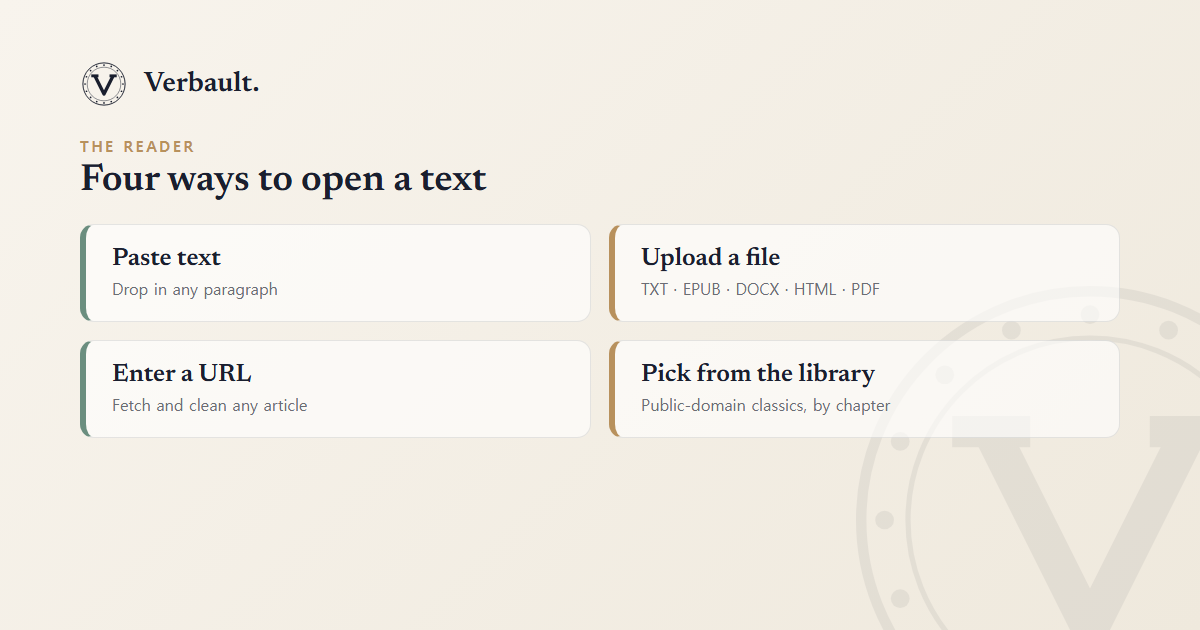
The Reader accepts four kinds of input:
- Paste text — drop any paragraph into the text box. Ideal for a single passage, an email, or something you copied from elsewhere.
- Upload a file — TXT, EPUB, DOCX, HTML, or PDF. Verbault extracts the readable text and strips away navigation, footers, and markup so you read the words, not the layout.
- Enter a URL — paste any article link; Verbault fetches and cleans the page automatically, keeping the article body and discarding ads and sidebars.
- Pick from the library — select a public-domain classic such as Frankenstein and it loads instantly, chapter by chapter, with a navigator so you never lose your place.
Once analysed, every word carries a reading level — easy, medium, or hard — based on how common it is in everyday English, using a frequency ranking built on the Brown corpus. You choose which levels to highlight from the Reader settings: easy words get a dotted underline, medium a solid underline, and hard words a soft purple highlight, so the vocabulary worth studying stands out at a glance.
Inline Definitions
Tap or click any word to open a popup with:
- The word's part of speech and base form (lemma) — so running resolves to run.
- Definitions from WordNet and, where available, Wiktionary, shown together.
- The reading level and corpus frequency rank, so you can judge how worth-learning a word is.
- An "Add to Vault" button to save the word to your vocabulary list for later review.
Tap anywhere outside the popup to dismiss it — there are no hover events, so nothing pops up by accident while you read.
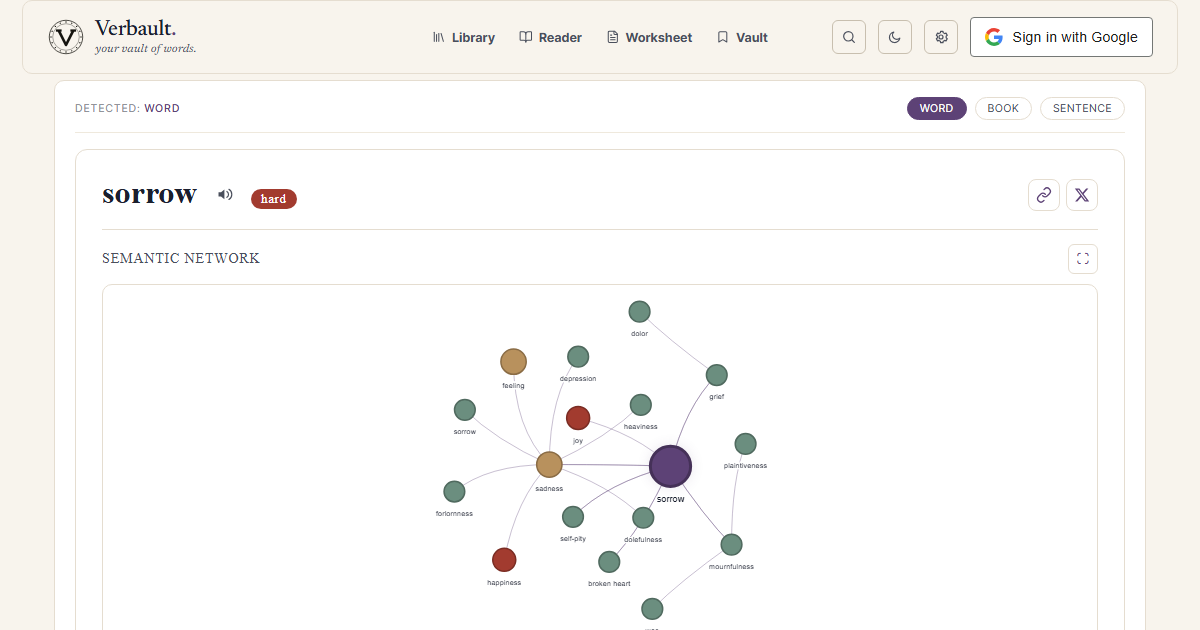
The same definition data powers our standalone word pages. Visit /word/sorrow for the full view: a semantic network of related words, the reading-level badge, and example sentences drawn from real books.
Translation Chip
A small translate chip in the Reader toolbar lets you translate the current paragraph into your target language using DeepL. The translation appears inline, underneath the original, so you can check your understanding without leaving the page. Treat it as a safety net for tricky sentences — reach for it after you have tried the original, not before.
Text-to-Speech
Press the speaker icon or the TTS chip to hear the current sentence read aloud. Verbault
uses the Kokoro neural TTS engine (voices af_heart and am_michael) with eSpeak NG as a
fallback, and you can switch voice and speed from the player bar at the bottom of the
Reader. Listening while you follow the highlighted words is one of the fastest ways to fix
pronunciation and rhythm. Read more in the TTS feature post.
From Reader to Worksheet
Once you have read a passage, click Make worksheet from this text to send it straight to the worksheet builder. The vocabulary you met in the Reader is pre-filled, so a quiz, matching exercise, or definition sheet is only a click away. See the worksheet guide for all six worksheet types and when to use each.
Everything you save — words in your Vault and bookmarked sentences — stays with your account, so the Reader becomes the front door to your whole study routine.
For a full product overview, visit what is Verbault?, or browse more step-by-step guides in the guides category.
Comments (0)
Log in to comment.